Auto Profiles
Auto Profiles switch your controller's profile, virtual controller mode and variant, adaptive trigger effects, forwarded audio source, and hiding automatically based on which program is focused. For example: a calm blue profile with no emulation on the desktop, and a game profile with Xbox 360 emulation when your game is in focus.
Note
Auto Profiles need Windows focus tracking and are Windows-only. The page is hidden on other platforms.
How It Works
Rules are evaluated top-down, first match wins, about once per second against the focused program. When a rule matches, its profile, emulation mode and variant, trigger effects, forwarded audio source, and hiding are applied temporarily — your stored per-controller bindings are never modified. When no rule matches (or Auto Profiles are disabled), each controller falls back to its bound profile and stored emulation settings, the triggers are cleared, and the forwarded audio source and hidden state from before the rule are restored.
A desktop notification is shown whenever the applied profile changes. Like other notifications, it follows the global notification toggle in Settings.
Creating a Rule
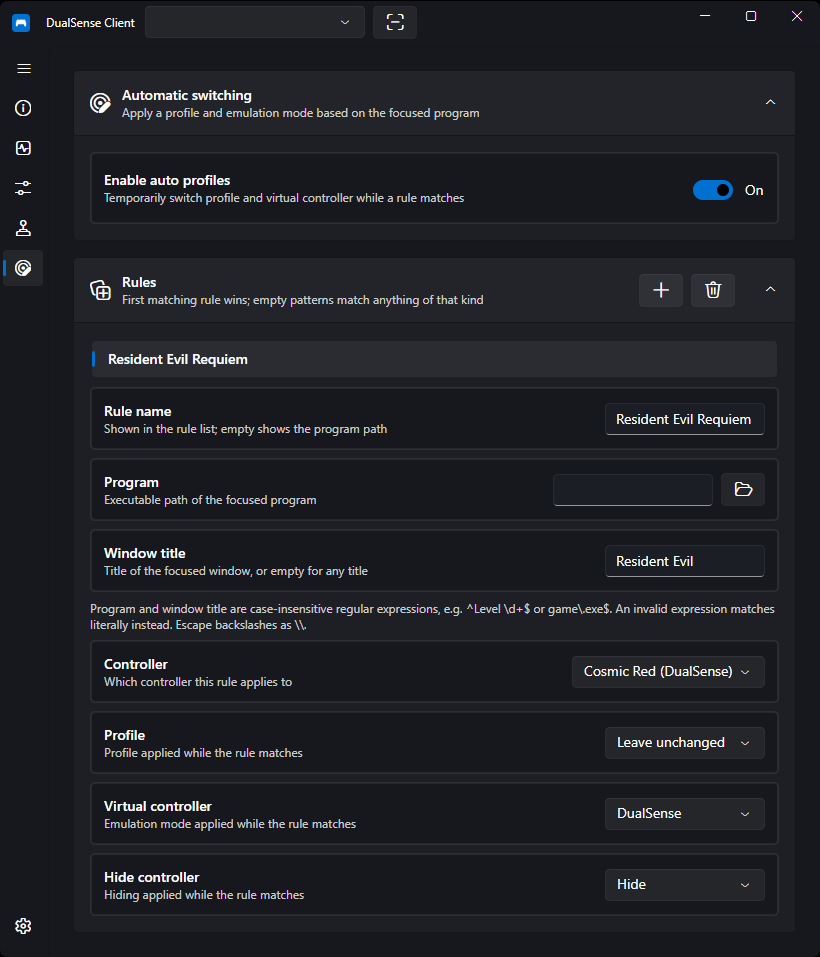
- Open the Auto Profiles page and press + to add a rule
- Give it a name (optional — the program path is shown when empty)
- Pick the program with the file picker (or type the path manually)
- Optionally set a window title filter, controller target, profile, virtual controller mode (plus its DualSense/DualShock 4 hardware variant when applicable), adaptive trigger effects, forwarded audio source (the system-output source needs no virtual controller), and hiding
- Use Match by to search by program only, window title only, or both — the unused filter is hidden and cleared
- Each dropdown starts at "leave unchanged" / "All controllers", so a rule can switch any combination of profile, virtual controller, triggers, audio source, and hiding. A rule that leaves all five unchanged does nothing (the page says so). The hiding option is only shown when the HidHide driver is available. The audio source picks what feeds forwarded audio: the virtual controller itself, or a loopback of the system's default output so the game never has to select the virtual controller — the loopback is routed directly to the physical controller and needs no virtual device (see Capture System Audio).
Matching
A rule matches when the focused program satisfies both the program and the title filter (an empty filter matches anything). The Match by selector switches between program only, window title only, or both, hiding and clearing the unused filter. Both are case-insensitive regular expressions (search semantics):
| Example | Matches |
|---|---|
game\.exe$ |
Any path ending in game.exe |
^C:\\Games\\ |
Anything under C:\Games\ |
Main Menu\|Pause Menu |
Either title anywhere |
^Level \d+$ |
Exactly Level followed by a number |
An invalid expression falls back to a plain contains match instead of breaking the rule. Note that backslashes are regex escapes: escape them (\\) for precise paths — a raw picked path with single backslashes is usually not a valid expression and simply matches literally.
New to regular expressions? Test your patterns live on regex101.com (.NET flavor), and see the MDN regular expressions guide and cheatsheet — the syntax is the same apart from minor flavor details.
Tip
Hover a rule in the list to see the full program path and title it matches.
Note
Store/UWP apps (e.g. games installed via the Xbox app) all run behind ApplicationFrameHost.exe, so they cannot be told apart by program — use the window title filter for those.
Per-Controller Rules
By default a rule targets all controllers. Pick a specific controller to give each pad its own setup per program — for example, player one's pad gets the game profile while player two's stays on default. Controllers are identified by MAC address with a device-path fallback, the same as profile bindings.