Special Actions
Special Actions let you trigger custom effects by holding a button combination or swiping on the touchpad. Each action lives on the Profile page, is bound to specific controllers, and can do things like disconnect the controller, change lights, play a sound, or show the battery level.
Where to Find Them
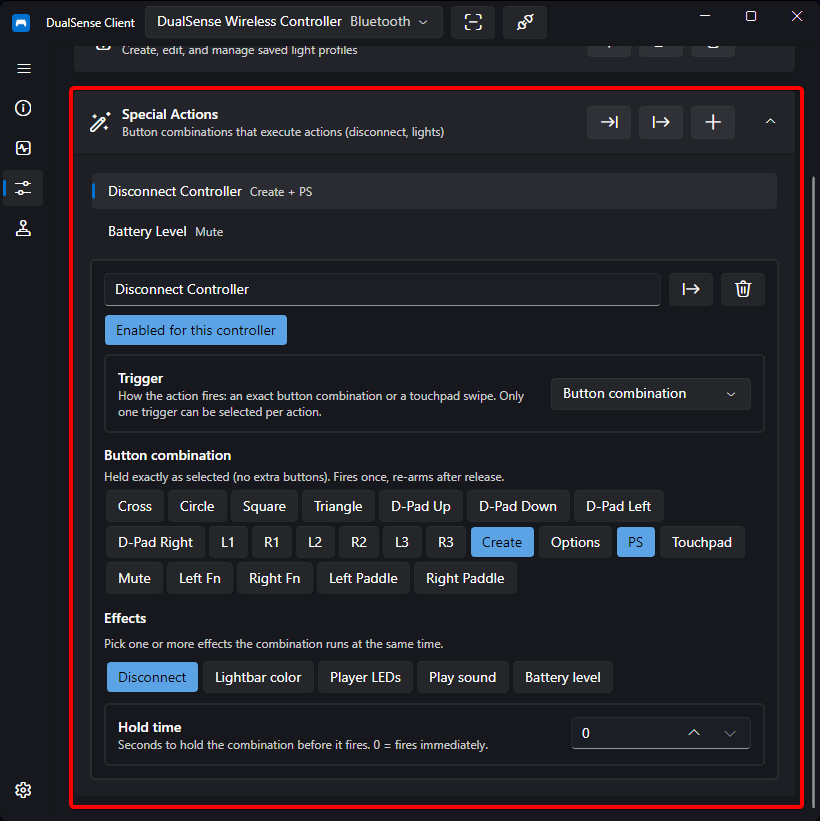
Open the Profile page and scroll to the Special Actions section. All actions are global — you create them once and then enable them per-controller.
Creating an Action
- Press New in the Special Actions header to create an action.
- Give it a name.
- Toggle Enabled for this controller to enable it for the currently selected controller. An action with no enabled controllers is defined but never fires.
- Configure the trigger and effects described below.
Use Import / Export to share whole collections, or export a single action from its row. Imported actions arrive disabled — enable them for the controllers you want.
Trigger
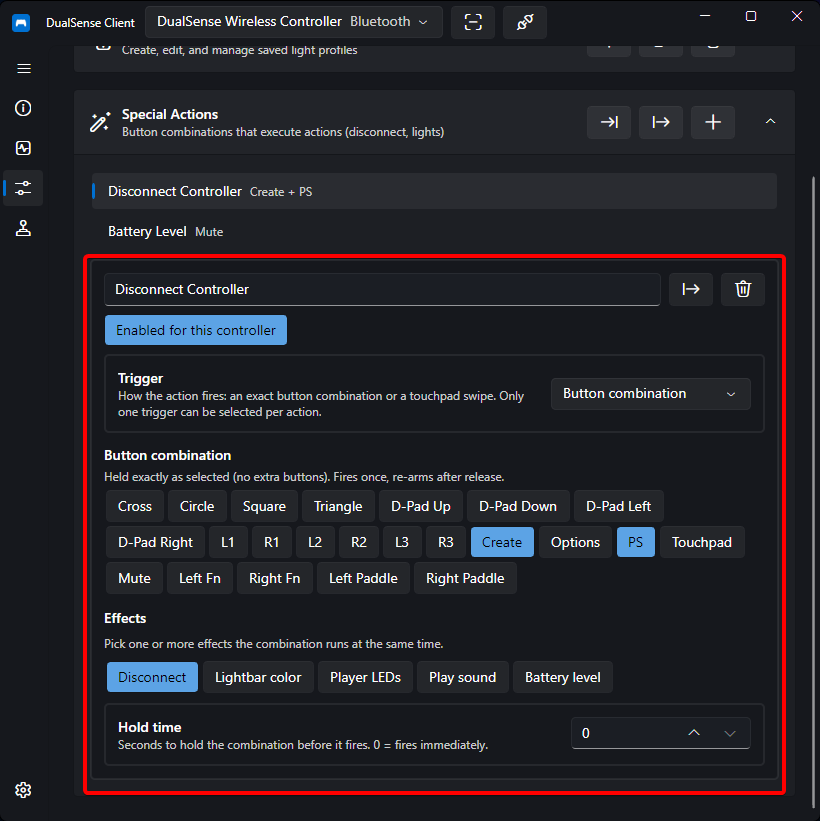
Each action has exactly one trigger:
| Trigger | Description |
|---|---|
| Button combination | Hold one or more buttons simultaneously. The combination must match exactly — holding an extra button blocks it. It fires once and re-arms when you release the buttons. |
| Touchpad gesture | Swipe a single finger across the touchpad in one of four directions: Swipe Up, Swipe Down, Swipe Left, Swipe Right. When a gesture is set, the button combination is ignored. |
Timing
| Setting | Range | Description |
|---|---|---|
| Hold time | 0 – 10 s | How long the exact combination (or swipe) must be held before the action fires. 0 fires immediately. |
| Apply while held | on/off | When enabled, light effects revert and sound stops as soon as you release the trigger, instead of staying applied. |
| Duration | 0 – 60 s | How long light effects stay applied before the bound profile is restored automatically. 0 keeps them applied. Ignored for Disconnect/Sound and when Apply while held is on. |
Effects
An action can carry several effects at once, at most one per type. Pick the ones you need:
| Effect | What it does |
|---|---|
| Disconnect | Disconnects the controller over Bluetooth. |
| Set lightbar color | Sets the lightbar to a chosen RGB color. Uses the color picker or Red/Green/Blue sliders. |
| Set player LEDs | Sets the player LED layout — either a preset (Player 1 – 5) or individual LED 1 – 5 toggles. On hardware generations that do not report full LED support, only mirrored presets are available. |
| Play sound | Plays an audio file (mp3, wav, flac, …) through the controller's Speaker or a Headset plugged into the controller jack. Configurable volume (0 – 255), and optional haptic feedback with strength (0 – 200%). |
| Show battery level | Sets the lightbar to a color that represents the current battery charge in 10 levels (level 0 = lowest, 9 = full). Pick a color per level; missing entries fall back to the default gradient from red (low) through orange/yellow to green (full). Not combinable with other light-changing effects. |
Note
Disabling an individual effect keeps it in the list with its parameters — toggling it back on restores them without re-entering values.
Warning
The Show battery level effect cannot be combined with other light-changing effects on the same action.
Tips
- Use a lightbar + player-LED action to give yourself a visual mode indicator (e.g. a red lightbar for a "stealth" profile).
- Use a short sound action as a confirmation beep when you press a combo that changes lights.
- Export your actions before reinstalling or resetting settings — the whole collection lives in a single settings file.