Controller Hiding
When you use virtual controller emulation, games may see two controllers — the real one and the emulated one — causing double inputs in menus and gameplay. Controller Hiding solves this by making the physical controller invisible to other applications while DualSense Client keeps full access to it.
Requirements
- Windows only — requires the HidHide driver
- Download and install HidHide once; no extra configuration needed in its own UI
How It Works
- Each controller has its own hide toggle on its device page
- When hidden, games and other applications no longer receive input from the physical controller
- The app whitelists itself automatically, so monitoring, lighting, profiles, and everything else keep working against the hidden controller
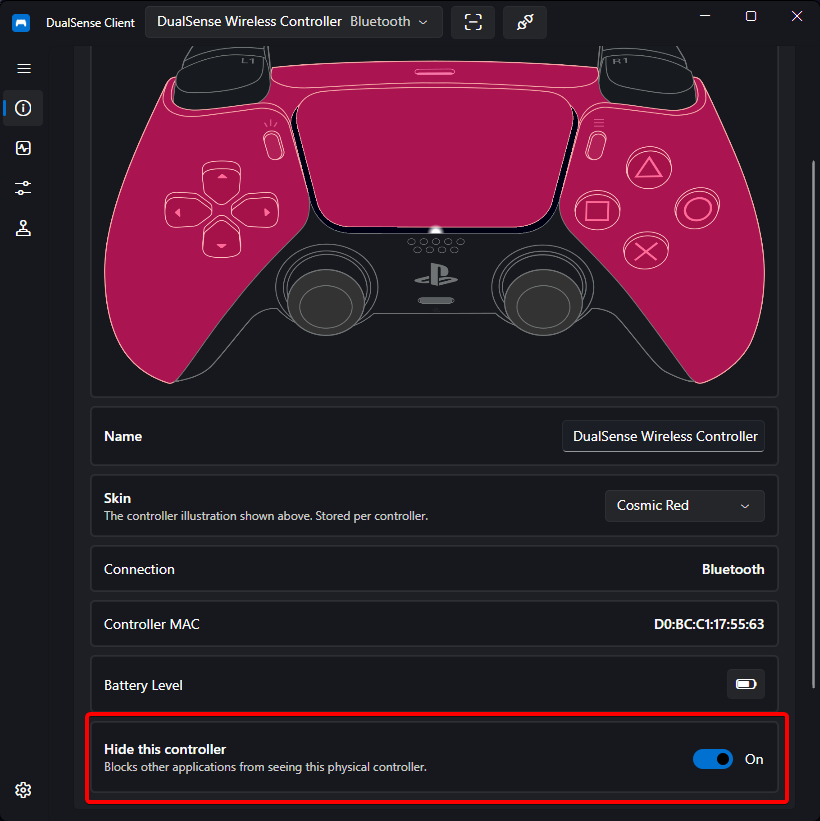
Typical Setup for Games
- Install HidHide (once)
- Enable virtual controller emulation with your preferred controller type
- Enable the hide toggle for the physical controller
- Launch your game — it now sees only the virtual controller, with rumble and trigger feedback still reaching your hands
Tip
If a game misbehaves after hiding (for example it cannot see the controller at all), toggle the hide switch off again first — then check that the game is reading the virtual device rather than the physical one.
Tip
Hiding can be automated per program with an auto profile rule — for example, hide the physical controller only while your game is focused and show it again on the desktop. The rule's hiding option appears once HidHide is installed.