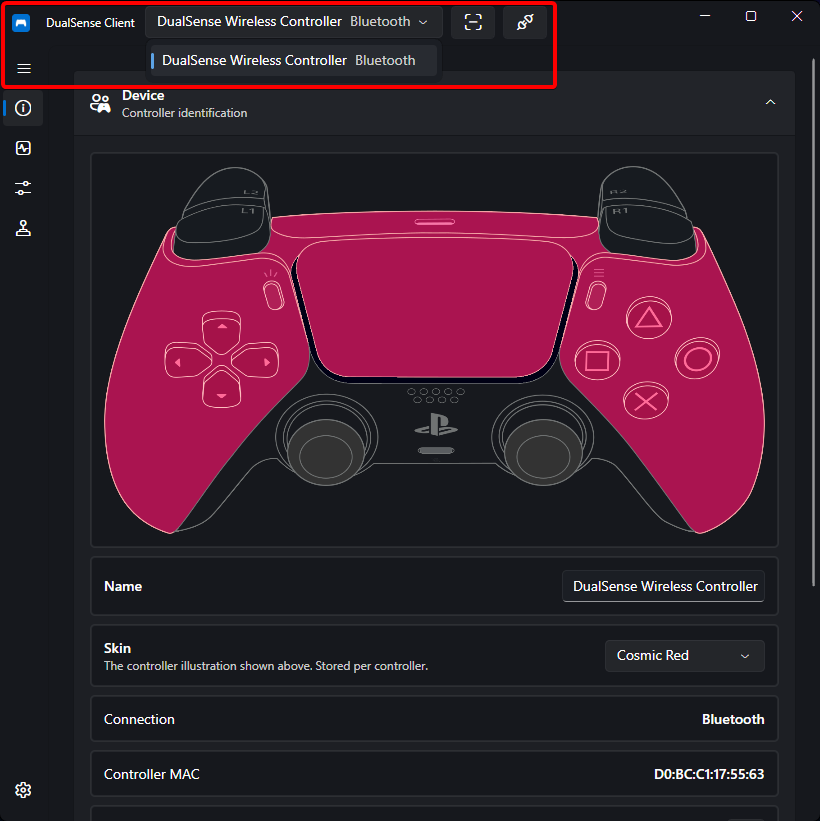
Settings
The Settings page controls the application's appearance, window behavior, and diagnostics. You can also access many of these options from the system tray without opening the main window.
Appearance
Theme
| Theme | Description |
|---|---|
| System | Follows the operating system's light/dark preference. |
| Light | Light backgrounds with dark text. |
| Dark | Dark backgrounds with light text. |
| Amoled | True-black backgrounds that switch off pixels on OLED displays. |
| Playstation | Deep blue-tinted surfaces with a PlayStation-blue accent, inspired by the PS5 home screen. |
The selected theme is applied immediately and persisted. Only the themes listed above are available — see Creating Custom Themes if you want to build one.
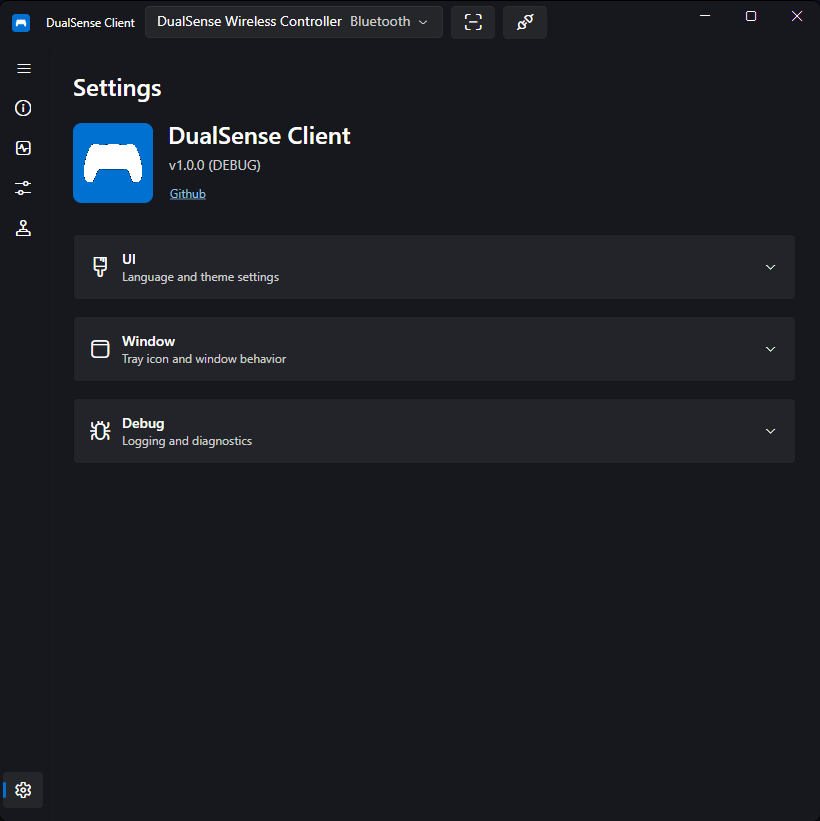
Language
Choose the display language from the dropdown. The app currently ships in English; additional translations can be contributed — see Translating.
Window & Tray
The app provides a system tray icon so it can run in the background.
| Setting | What it does |
|---|---|
| Close to tray | Closing the window hides it to the tray instead of quitting. Reopen it from the tray menu. |
| Start in tray | Launch the app already hidden to the tray. |
| Show battery percentage on tray icon | When enabled, the tray icon shows the active controller's battery as plain numbers. When disabled (or no controller has a known battery level), the app icon is shown instead, tinted with the current theme's accent color. |
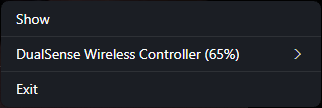
Tray Icon Menu
- Show — restores the main window.
- Per-controller submenu — each connected controller appears with its display name and battery percentage. Inside you can:
- Select the active controller (radio item).
- Profiles — switch the controller's bound profile.
- Emulation — switch the virtual controller mode (disabled while a virtual device is being created).
- Disconnect — Bluetooth-only: disconnects the controller.
- When no controllers are connected, a disabled No controllers connected item is shown.
- Exit — quits the application.
Tip
You can change profiles and virtual controller modes entirely from the tray, without opening the main window — useful during a game.
Diagnostics
Log Level
Choose the minimum logging verbosity:
Trace → Debug → Info → Warning → Error → Critical → None
- The default is
Info. - Raising verbosity (e.g. to
Debug) is useful when reporting a problem — see Logs for where log files are stored. - Changes apply immediately at runtime.
Other Window Controls
Outside the Settings page, the title bar also exposes:
- A controller picker dropdown (connected controllers with their name and connection type — Bluetooth/USB) for switching which device the pages act on.
- A Scan toggle that starts/stops HID scanning for newly connected controllers.
- A Disconnect button (visible only for Bluetooth controllers) that disconnects the selected controller.
Notifications for connect, disconnect, and profile actions appear as slide-in banners at the bottom of the window; action banners offer a button that runs the action and clears the queue.