Input Monitor
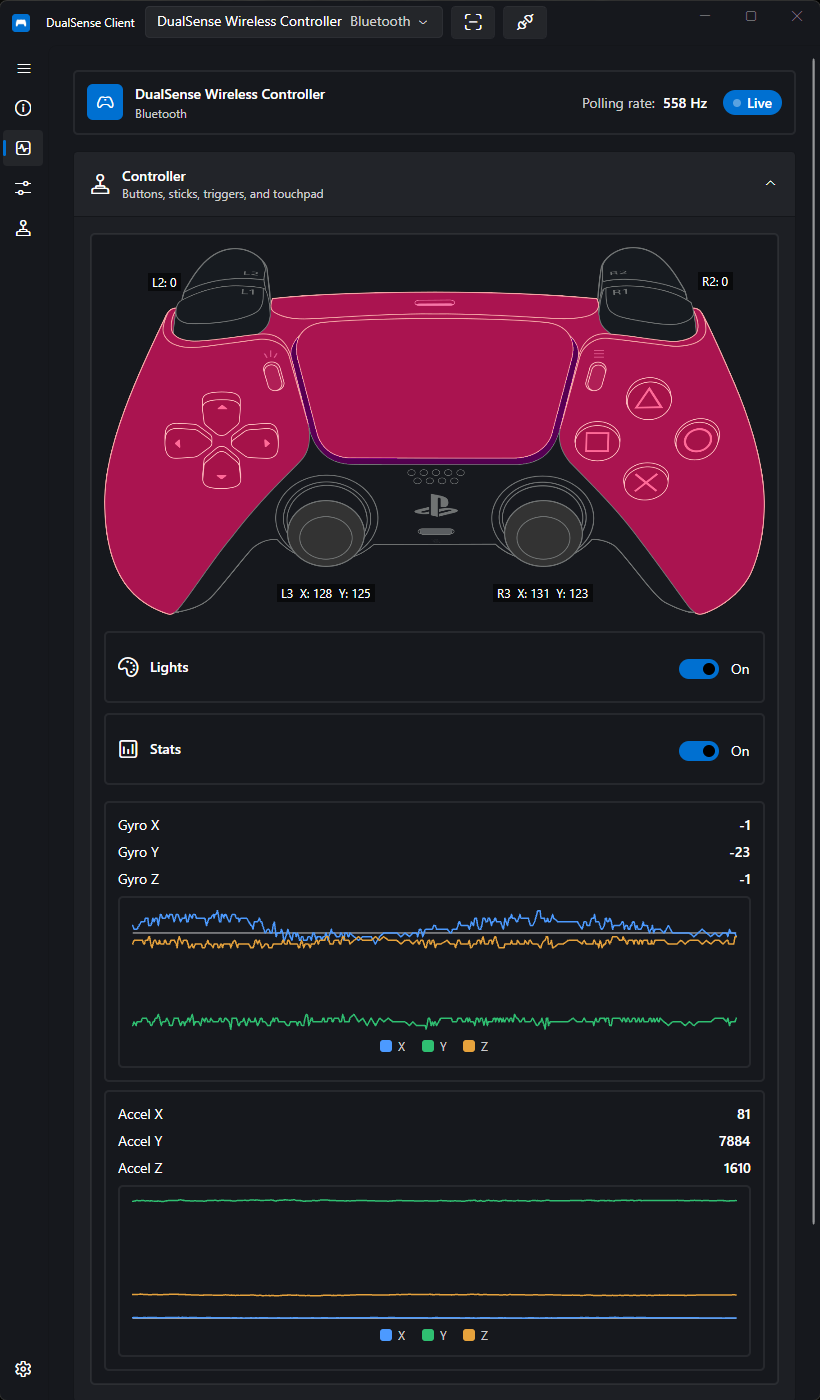
The Input Monitor page shows a live view of everything your controller reports, updated in real time.
What Is Monitored
- Buttons — every button on the controller
- Sticks — both analog stick positions
- Triggers — L2/R2 analog values
- Motion sensors — live gyro and accelerometer graphs
- Touchpad — touch positions and clicks
Live Status & Connection
A status strip at the top of the page shows the controller name and type, the current polling rate (Hz), and a pulsing Live badge when reports are arriving (or Waiting otherwise). The current connection type (USB or Bluetooth) is detected automatically.
With several controllers connected at once, use the controller picker in the title bar to switch which device you are monitoring.
Visualization
- A skin-tinted controller view reflects the live input.
- Edge paddles and Fn buttons — on a DualSense Edge, indicators for FnL, FnR, L4, and R4 light when pressed.
- Toggles let you show/hide the lightbar LEDs and the statistics/motion graphs.
Motion
When statistics are shown, two live graphs display:
- Gyroscope — X, Y, Z
- Accelerometer — X, Y, Z
Output Test
Below the visualization, an Output Test section lets you exercise the motors without launching a game:
- Vibration — independent enable toggles and 0 – 255 strength sliders for the left and right motors.
- Adaptive triggers — per-trigger (L2/R2) effect modes and parameters; see Rumble & Triggers for the mode table and slider ranges (Force 0 – 255, Frequency 0 – 15, Start/End).
Audio Player
The Audio Player at the bottom is the same player documented in Audio Playback: open a file, use the transport bar, and choose desktop speakers vs. controller outputs. Note that speaker and headset cannot run at the same time as controller outputs — the output selector enforces this.
Tip
The input monitor is handy for diagnosing stick drift, verifying trigger travel, or just confirming button prompts map correctly in games.